

ADDING A SECONDARY DISPLAY
Giving my chat windows their own screen, for about $20
Claude and ChatGPT are open all day now, sitting right next to Slack, and I spend a good chunk of the day hopping between them.
So when I came across a YouTube video where someone added a vertical second display just for chat windows, it stuck with me.
I’ve tried a version of this before. Years ago, when I worked in a big office, I had a desk with room for two full-size monitors. Plenty of engineers did. It always felt like a certain level of overkill to me.
For a long stretch I used my laptop as a secondary display, just for chats. Eventually I gave up, went down to a single screen, and got really good at window hopping.
Then the pandemic. I set up a workspace in my bedroom, and there’s really only room for one monitor. So for years now, it’s been one display.
That was fine for a while. Then the chat windows took over my workday, and the hopping got old.
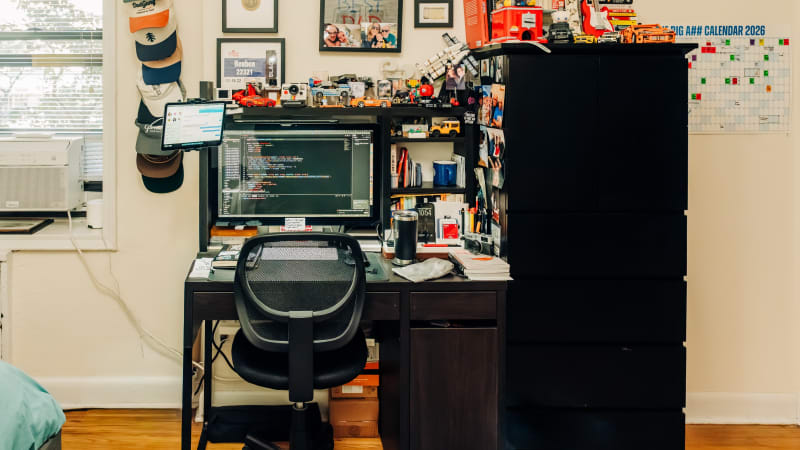
So this week I started a little experiment and turned my iPad Pro into that second display.
A few clicks in Sidecar on Monday and it was working, propped up next to my monitor in its stand case. Today I added a small mount to my desk, about $20, and the iPad now lives there. Slack, Spotify, iMessage, Claude, and ChatGPT all have a home on it.
It’s not perfect. Sidecar only works in landscape, so I don’t get the tall vertical screen from the video. But it’s good enough to find out how much I actually like having a second display before I commit to anything more.
If it sticks, I’m eyeing Duet Display, which would let me run the iPad in portrait mode. I just really don’t want another subscription. Or maybe one day I’ll upgrade to one of those portable monitors.
For now, the chats have their own screen again. And I’m hopping a lot less.
New here? Start here →